

HP Officejet 4650 Setup / 123.hp.com/setup 4650
In order to setup the HP officejet 4650 printer first you need to visit 123.hp.com/setup 4650. HP Officejet 4650 printer is a wireless printer and has print, scan and copy functionalities. In the upside the printer also has inbuilt air print technology, which enable the printer to print from apple gadgets (iphone, ipad etc.). The color printing is excellent with low cost but the monochrome print that is printing document is little bit expensive compared to the photo print. The printer has automatic document feeder and built in Wi-Fi. On the downside the HP Officejet 4650 printer 123.hp.com/oj4650 has no Ethernet for wired networks.
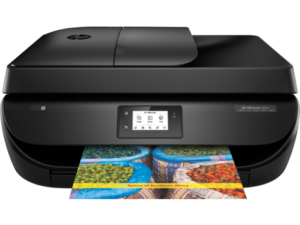
123 HP OFFICEJET 4650 FEATURES
- Auto Wireless Connect
- Simple Mobile Printing
- Automatic Double-Sided
- Wireless Direct Printing
HP OFFICEJET 4650 SETUP METHODS AND PROCEDURE
1. HP AUTO WIRELESS CONNECTION:
In this type of connection method you need not type in the network SSID or password. It automatically connects to the wireless network.
Install Printer Software:
- Download the printer driver or software from 123.hp.com/oj4650 or 123.hp.com/setup 4650
- Make sure the driver you download is compatible with both your printer type and your computer OS (Mac or Windows)
- Select the connection type (USB or Wireless).
- In next step select Yes, send my wireless settings to my printer and begin installing.
Printer setup:
- Further, Select the option ‘Auto Wireless Connect’ and rest of the installation will happen itself.
- Once the setup is complete, you can select finish and try to print test page
2. WIRELESS SETUP WIZARD:
Install Printer Software:
- Download the printer driver or software from 123.hp.com/oj4650 or 123.hp.com/setup 4650
- Make sure the software you have downloaded is compatible with both your printer model and your computer OS (Windows or Mac).
- Select the Connection type (Wired or Wireless).
- Turn ON the printer.
- On the printer control panel, which is the LCD screen with buttons and icons are, make sure the wireless icon is flashing and there is no error light (Yellow triangular) flashing.
- Before you start with setup make sure you know the network name (SSID) and password (WEP/WPA) of your wireless network.
- From the control panel of the printer press or touch the wireless button and press Setup button.
- Select the Wireless setup.
- Click on wireless setup wizard.
- Choose your wireless network name.
- Touch the screen to enter the wireless password. Make sure it is case sensitive
- Soon your printer will be connected with the network. You may print a test report to confirm.
3.WPS ( WI-FI PROTECTED SETUP )
Install Printer Software:
- Download the software from 123.hp.com/oj4650 or 123.hp.com/setup 4650
- Make sure the software you have downloaded is compatible to both your printer model and your Computer OS(Windows or Mac).
- Select the Connection type.
- Select Yes and send my wireless settings to the printer and start installation.
Push button method:
- Most importantly you need to check if your router and HP printer supports Push button method.
- Select the WPS (Wi-Fi Protected Setup) Push button method on your printer.
- Press the WPS button on your router for 3 seconds.
- Once the connection is established, you will see the wireless light on the printer stops flashing and become steady
- You can now follow the instructions and finish the setup.
4. CONNECT HP PRINTER USING USB CABLE:
Install Printer Software:
- Download the Driver for your HP Officejet 4650 from 123.hp.com/oj4650 or 123.hp.com/setup 4650
- Make sure the software you have downloaded is compatible with both your printer and your computer.
- Select the connection type during installation.
- Select Yes and send my wireless settings to my printer installing.
Printer setup:
- Connect to the HP printer to the power source.
- Turn on the HP printer.
- Now insert one end of the USB cable to the Computer while the other to the printer.
- The system detects the printer.
- Your printer is prepared to be used.
- Now once the printer is recognized by the computer, Follow the on-screen instructions to finish the setup.
- Once the setup is finished, try to print the test page.
How to setup HP Officejet 4650 on Chromebook
You can connect HP Officejet 4650 printer to your Chromebook using a USB cable, or you can print from a device that’s connected to your Wi-Fi network.
- Turn on the printer and connect to your Wi-Fi network using WPS or wireless setup wizard connection method.
- Click on the Settings gear on the top right side of the Google chrome.
- Select Advanced on the left side of the Settings menu.
- Press Printing on the left side under Advanced.
- Select the Add a printer
- You will see your printer in the list, select the printer and press setup.
- Once its added try to print something from the Chromebook to check if it works.
HP Officejet 4650 wireless setup Printer Frequently Asked Questions
- Where do I find the WPS PIN on my HP Officejet 4650 printer?
- What ink cartridge does HP OFFICEJET 4650 use?
- How I find the WPS PIN code?
- How do I setup my HP Officejet 4650?
- How do I setup my HP Officejet 4650?
- How do I scan with HP OFFICEJET 4650?
- How do I connect my HP Envy printer to my Macbook air?
- How do I connect my HP Officejet 4650 to my laptop?
Related Searches for HP Officejet 4650 Printer
- Install 123.hp.com/Officejet 4650 in my computer.
- com/Officejet 4650 wireless setup.
- com/Officejet 4650 software for mac.
- Install 123.hp.com/Officejet 4650 driver.
- hp Officejet 4650 printer wps pin.
- hp Officejet 4650 printer wireless setup.
- How to setup wireless 123 hp printer.
- hp Officejet 4650 printer software installation.
- hp Officejet 4650 printer instructions.
- How to setup 123.hp.com/Officejet 4650 printer.
- hp Officejet 4650 printer driver download.
- hp Officejet 4650 manual
- How to setup 123.hp.com/Officejet 4650 printer.
- com/Officejet 4650 printer
- hp Officejet 4650 auto wireless connect.
- How to install 123 hp Officejet 4650 printer Driver.
- How to download 123 hp envy printer driver.
- Drivers for 123.hp.com/Officejet 4650 Printer.
- Connecting 123.hp.com/Officejet 4650 to computer.
- 123 hp setup for Officejet 4650.
- 123 hp setup 4650 app.
- 123 hp printer support and services
- com/Officejet 4650 user manual.
- com/Officejet 4650 setup.
- 123 hp Officejet 4650 scanning software.
- HP Officejet 4650 printing setup.
- HP Officejet 4650 printer setup troubleshooting.
- HP Officejet 4650 printer setup and install.
- HP Officejet 4650 printer driver download.
- HP Officejet 4650 manual.
- HP Officejet 4650 ink cartridge Install.
- HP Officejet 4650 drivers for windows.
- HP Officejet 4650 drivers for mac.
- HP Officejet 4650 driver setup.
- HP Officejet 4650 driver installation.
- HP Officejet 4650 driver download for windows.
- HP Officejet 4650 driver download for mac.
If you need any help, feel free to call our toll free or chat with us