

Unboxing HP Laserjet Pro MFP M148DW Printer
- Remove the printer box’s sealing tape and open the box.
- Take out the HP Printer and other accessories from the box carefully.
- The HP Laserjet Pro MFP M148DW setup accessory includes the user guide, power cable, and a USB type-B cable.
- Remove the packaging material from the M148DW printer and set the printer on a flat surface.
- Unwrap the M148DW printer’s plastic bag and discard it.
- The M148DW printer lids are secured by orange tapes.
- Peel off all these tapes from the M148DW machine’s exterior and interior surfaces.
- Remove the plastic film from the M148DW printer’s control panel, download hp laserjet pro mfp m148dw driver from hp support website
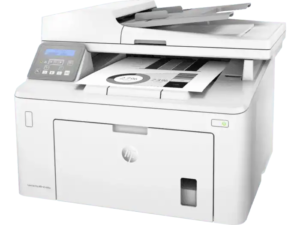
How to load paper
- Lower the M148DW printer’s front cover and load a paper stack in the paper input tray. You should load at least 15-20 papers.
- Adjust the HP printer’s paper width guides to secure the paper stack.
- Close the front cover.
- Once the papers are loaded correctly, you should print an alignment sheet, just to make sure paper goes through easily.
How to Install the LJPRO MFP M148DW Driver?
- Go to the hp official website to download the hp laserjet pro mfp m148dw driver and launch the installer.
- Alternatively, insert the HP MFP M148DW CD into your computer and open the installer. If you do not have the CD you follow the instructions on the website.
- Make sure that no other conflicting application is running to prevent any installation issues.
- When the HP MFP M148DW software installer’s dashboard appears, click the Next/Continue button.
- Accept the MFP M148DW software installer’s license agreement or term and conditions and go to the next step.
- Select the preferred connection method (either USB or Wireless) and follow the on-screen prompts to finish the installation.
HP Laserjet pro MFP M148DW Wireless Setup
Before proceeding with the M148DW wireless setup, Make sure that you have the wireless network data on hand. This includes the Wi-Fi network SSID and passphrase.
Make sure that you have the M148DW CD or download the driver software file from the HP official support site.
- Turn on the HP Laserjet Pro MFP M148DW printer
- Navigate to the Setup option on the M148DW printer’s control panel and tap on it.
- Choose Network setup option. You need to perform a swipe-up gesture or you can use arrow keys to move options.
- Tap the Wireless Menu button and then select Wireless Setup Wizard.
- You may also select Wi-Fi protected setup instead of Wireless setup wizard
- After selecting wireless setup wizard, select your network SSID and then enter the passphrase once asked.
- Tap OK.
- Now, your M148DW printer is connected to the router.
- To finish the rest of the wireless setup, install the M148DW driver software on your computer and follow the on-screen instructions to establish the connection.
How to Scan on HP Laserjet Pro MFP M148DW
A)Scanning through Windows HP Software
- Place the photo/document on the HP M148DW machine’s scanner glass.
- Printed side must be facing down, then close the scanner cover.
- Launch the Windows HP software from the Start -> All Programs –> HP folder.
- The Windows HP Assistant opens in a new window.
- Make sure that the HP Laserjet Pro MFP M148DW setup is selected.
- Choose the Scan option and then click Scan a Document or Photo.
- Tweak the preferences according to the scan requirement.
- Ensure that the scanning preferences have been set correctly.
- Click Scan.
B) Scanning through Mac HP Software (hp laserjet pro mfp m148dw driver)
- Place the photo/document to be scanned on the M148DW printer.
- Printed side of the document must be facing down, close the scanner cover.
- Launch HP Easy Scan on your Mac computer.
- This HP application can be accessed by navigating to Go –> Applications –> HP Easy Scan.
- Click the Scanner drop-down button and choose HP Laserjet Pro MFP M148DW setup from the list.
- Select the Presets drop-down button and choose a preset that matches your scan requirement.
- Click the Scan button to begin scanning.
HP Laserjet Pro MFP M148DW Printer Frequently Asked Questions
- How I find the WPS PIN code?
- Where is WPS button on the router?
- How do I setup my HP Laserjet mfp m148 dw?
- How do I scan with HP LASERJET MFP M148 DW?
- What ink cartridge does HP LASERJET MFP M148 DW use?
- How do I connect my HP laserjet printer to my macbook air?
- How do I connect my HP Laserjet mfp m148 dw to WIFI?
- Where do I find the WPS PIN on my HP Laserjet mfp m148 dw printer?
- How do I connect my HP Laserjet mfp m148 dw to my Mac?
- How do I connect my HP Laserjet mfp m148 dw to my laptop?
- How to download hp laserjet pro mfp m148dw driver