

Mastering Printer Connectivity: A Step-by-Step Guide to Effortlessly Connect Your Printer
In today’s digital world, a reliable printer is an essential tool for both home and office environments. However, mastering printer connectivity can often feel like navigating a maze of wires and settings. Whether you’re trying to establish a seamless connection for your home office or setting up a shared printer in a bustling workplace, the process can be daunting. But fear not! This step-by-step guide will empower you to effortlessly connect your printer in no time. From choosing the right connection method to troubleshooting common issues, we’ll walk you through everything you need to know to ensure smooth and hassle-free printing. Say goodbye to frustration and hello to efficient printing solutions that keep you productive. Let’s dive in and simplify the world of printer connectivity together!
Mastering Printer Connectivity: A Step-by-Step Guide to Effortlessly Connect Your Printer

Understanding How to connect printer: An Overview
In the realm of modern technology, printer connectivity plays a crucial role in ensuring seamless and efficient printing. The ability to connect your printer to various devices without hassle is essential for both personal and professional use. Understanding the fundamentals of printer connectivity is the first step in mastering this important skill. There are multiple ways to connect your printer, each with its unique advantages and potential challenges. By familiarizing yourself with these methods, you can select the best option for your needs and avoid common pitfalls.
Printer connectivity has evolved significantly over the years, transitioning from simple wired connections to more sophisticated printer wireless setups. This evolution has made it easier for users to print from multiple devices, including computers, smartphones, and tablets. However, with this increased convenience comes the need to understand the various connectivity options and how they work. Whether you are dealing with USB, Ethernet, Bluetooth, or Wi-Fi connections, grasping the basics will empower you to tackle any connectivity issues with confidence.
Moreover, the importance of printer connectivity extends beyond just the physical connection. It involves understanding network settings, driver installations, and software configurations that can impact the printing process. A well-connected printer ensures that your documents are printed accurately and promptly, without unnecessary delays. By delving into the different aspects of printer connectivity, you can ensure that your printing experience is smooth and efficient, regardless of the environment in which you are working.
Types of Printer Connections: Wired vs. Wireless
When it comes to connecting your printer, you have two primary options: wired and wireless connections. Each type of connection offers distinct advantages and disadvantages, and the choice between them depends on your specific needs and preferences. Understanding the differences between wired and wireless connections can help you make an informed decision and ensure optimal performance for your printer.
Wired connections typically involve using a USB or Ethernet cable to connect your printer directly to a computer or network. These connections are generally straightforward and reliable, as they do not depend on network signals that can be influenced by external factors. USB connections are ideal for personal use, providing a direct link between your printer and computer for quick and easy printing. Ethernet connections, on the other hand, are more suited for office environments where multiple users need access to the printer. By connecting the printer to a network switch or router, all devices on the network can utilize the printer, promoting efficient workflow and collaboration.
Wireless connections, including Wi-Fi and Bluetooth, offer greater flexibility and convenience by allowing you to print from various devices without the need for physical cables. Wi-Fi connections enable your printer to join your home or office network, making it accessible to multiple devices simultaneously. This is particularly useful in environments where mobility and accessibility are key, such as shared workspaces or households with several users. Bluetooth connections, while less common, allow for direct communication between your printer and nearby devices, providing a quick and easy way to print without needing to connect to a network. However, wireless connections can sometimes be prone to interference and require proper network settings to ensure stability and performance.
Ultimately, the choice between wired and wireless connections depends on your specific requirements and the environment in which you are using your printer. By understanding the benefits and limitations of each type of connection, you can select the most suitable option and enjoy hassle-free printing.
Preparing Your Printer for Connection
Before you can connect your printer to any device, it’s essential to prepare it properly. This preparation involves several steps, including unpacking the printer, installing necessary components, and ensuring that it is ready for the connection process. Taking the time to adequately prepare your printer can prevent potential issues and ensure a smooth setup.
Start by carefully unpacking your printer and removing all packaging materials. Consult the user manual to identify any components that need to be installed, such as ink cartridges or toner, paper trays, and power cables. Follow the manufacturer’s instructions to install these components correctly, ensuring that everything is securely in place. Once your printer is physically set up, plug it into a power source and turn it on. Most printers will perform an initial setup process, which may include aligning the cartridges and performing a test print. Allow your printer to complete this process before proceeding to the next steps.
Next, ensure that your printer is equipped with the necessary software and drivers. Drivers are essential for your computer to communicate with the printer and perform printing tasks. Many printers come with a CD containing the required drivers, or you can download printer driver from the manufacturer’s website. Installing the correct drivers is crucial for compatibility and optimal performance. Follow the installation instructions provided to ensure that the drivers are correctly installed on your computer.
Finally, check your printer’s connectivity settings. If you are using a wired connection, ensure that the appropriate cables are available and in good condition. For wireless connections, make sure that your printer supports the desired method, such as Wi-Fi or Bluetooth, and that it is enabled. You may need to access the printer’s menu or settings to configure the wireless options. By thoroughly preparing your printer, you can proceed to the connection process with confidence and minimize the risk of encountering issues.
Connecting Your Printer to a Computer
Connecting your printer to a computer is a fundamental step in setting up your printing system. Whether you are using a wired or wireless connection, the process involves several key steps that ensure successful communication between the two devices. Follow these guidelines to connect my printer to a computer efficiently.
For wired connections, start by ensuring that your computer is powered on and the printer is ready for use. Locate the USB or Ethernet port on your printer and computer, and connect the appropriate cable. If you are using a USB connection, the computer should automatically detect the printer and prompt you to install the necessary drivers. Follow the on-screen instructions to complete the installation process. For Ethernet connections, connect the printer to your network router or switch using an Ethernet cable. Ensure that the printer is powered on and properly configured to join the network. Once connected, your computer should be able to detect the printer on the network, allowing you to install the drivers and set up the printer.
Wireless connections involve a few additional steps. To connect your printer to a computer via Wi-Fi, ensure that both devices are connected to the same wireless network. Access the printer’s menu or settings to enable Wi-Fi and join the network. You may need to enter your network’s SSID and password for authentication. Once the printer is connected to the network, your computer should be able to detect it or else printer is offline. Open the printer settings on your computer and select the option to add a new printer. Follow the prompts to install the drivers and configure the printer for wireless use. Bluetooth connections are similar, involving pairing the printer with your computer through the Bluetooth settings. Ensure that Bluetooth is enabled on both devices and follow the pairing instructions to establish the connection.
After successfully connecting your printer to a computer, perform a test print to ensure that everything is functioning correctly. If you encounter any issues, consult the user manual or manufacturer’s website for troubleshooting tips. By following these steps, you can establish a reliable connection between your printer and computer, enabling efficient and hassle-free printing.
Connecting Your Printer to a Wi-Fi Network
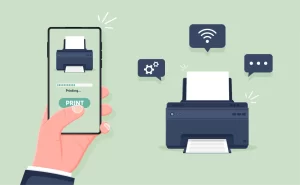
Printer Set up
Connecting your printer to a Wi-Fi network offers the convenience of wireless printing from multiple devices. This process involves configuring the printer to join your network and ensuring that it is accessible to all devices within the network. Follow these steps to connect your printer to a Wi-Fi network and enjoy seamless wireless printing.
Begin by ensuring that your printer is powered on and ready for use. Access the printer’s menu or settings to enable Wi-Fi connectivity. This option is usually found under the network settings or wireless setup menu. Select the option to connect to a Wi-Fi network and initiate the setup process. The printer will search for available networks and display a list of detected SSIDs. Choose your network from the list and enter the password if required. Ensure that you enter the correct credentials to avoid connection issues. Once the printer successfully joins the network, it should display a confirmation message.
Next, configure your computer and other devices to detect and use the printer. Open the printer settings on your computer and select the option to add a new printer. The computer will search for available printers on the network and display a list of detected devices. Choose your printer from the list and follow the prompts to install the necessary drivers and configure the printer for wireless use. Repeat this process for any additional devices that need access to the printer. Ensure that each device is connected to the same Wi-Fi network as the printer for successful communication.
After completing the setup, perform a test print from one of your devices to verify that the connection is working correctly. If you encounter any issues, check the printer’s network settings and ensure that it is properly connected to the Wi-Fi network. Additionally, verify that your devices are on the same network and have the correct drivers installed. By following these steps, you can establish a reliable Wi-Fi connection for your printer, enabling convenient and efficient wireless printing from multiple devices.
Troubleshooting Common Printer Connectivity Issues
Despite careful preparation and setup, printer connectivity issues can sometimes arise, causing frustration and delays in your printing tasks. Understanding common problems and their solutions can help you troubleshoot and resolve connectivity issues quickly. Here are some common printer connectivity issues and steps to address them.
One common issue is the printer not being detected by the computer or network. If your printer is not showing up, ensure that it is powered on and properly connected. For wired connections, check that the cables are securely connected and free from damage. For wireless connections, verify that the printer is connected to the correct network and that the network signal is strong. Restart both the printer and the computer to refresh the connection. If the problem persists, reinstall the printer drivers and check for any updates from the manufacturer’s website.
Another issue is slow or interrupted printing, which can be caused by network congestion or interference. If your printer is experiencing slow performance, check the network settings and ensure that the printer is connected to a stable and strong Wi-Fi signal. Avoid placing the printer too far from the router or in areas with heavy interference. Additionally, check for any pending print jobs that may be causing delays. Clearing the print queue and restarting the printer can often resolve performance issues.
Printer driver compatibility can also cause connectivity problems. If your printer is not functioning correctly, ensure that you have installed the correct drivers for your operating system. Incompatible or outdated drivers can lead to communication errors and printing issues. Visit the manufacturer’s website to download the latest drivers and follow the installation instructions carefully. Additionally, check if your operating system has any updates that may affect printer compatibility.
By understanding these common issues and their solutions, you can troubleshoot and resolve printer connectivity problems effectively. Ensuring that your printer is properly configured and maintained can prevent many issues and promote smooth and efficient printing.
Using Mobile Devices to Connect to Your Printer
In today’s mobile-centric world, the ability to print directly from smartphones and tablets offers unparalleled convenience. Connecting your printer to mobile devices allows you to print documents, photos, and other materials without needing a computer. Follow these steps to connect your printer to mobile devices and enjoy effortless mobile printing.
Start by ensuring that your printer is compatible with mobile printing technologies. Many modern printers support features such as AirPrint, Google Cloud Print, and proprietary mobile printing apps from the manufacturer. Check the user manual or manufacturer’s website to verify the mobile printing options available for your printer. Enable the relevant mobile printing feature in the printer settings, ensuring that it is connected to the same Wi-Fi network as your mobile devices.
Next, download and install any required mobile printing apps on your smartphones and tablets. These apps provide a user-friendly interface for selecting and printing documents directly from your mobile devices. Open the app and follow the setup instructions to connect it to your printer. You may need to enter the printer’s IP address or perform a network search to detect the printer. Once the connection is established, you can select documents, photos, and other materials to print directly from the app.
For devices that support AirPrint or Google Cloud Print, the process is even more straightforward. Ensure that your printer is configured for these features and connected to the network. Open the document or photo on your mobile device and select the print option. Choose your printer from the list of available devices and adjust any print settings as needed. Initiate the print job and wait for the printer to process and print the material.
By following these steps, you can seamlessly connect your printer to mobile devices and enjoy the convenience of mobile printing. This capability is particularly useful for printing on-the-go, allowing you to quickly produce hard copies of important documents without needing a computer.
Printer Connectivity and Operating System Compatibility
Ensuring that your printer is compatible with your operating system is critical for successful connectivity and printing. Different operating systems have varying requirements and support for printer drivers and configurations. Understanding how to achieve compatibility can prevent connectivity issues and promote efficient printing.
Start by identifying the operating system on your computer or devices, such as Windows, macOS, Linux, iOS, or Android. Each operating system has specific requirements for printer drivers and software. Check the user manual or manufacturer’s website to verify that your printer supports your operating system. Download and install the appropriate drivers and software, following the installation instructions carefully. Ensuring that you have the correct and up-to-date drivers is essential for optimal performance.
Windows operating systems typically offer extensive support for a wide range of printers, making it relatively easy to connect and set up your printer. Use the built-in Add Printer wizard to detect and install the printer, selecting the correct drivers from the list or downloading them from the manufacturer’s website. macOS also provides robust printer support, allowing you to add printers through the System Preferences. Ensure that you have the latest macOS updates and printer drivers for compatibility.
Linux operating systems may require additional steps for printer connectivity, as printer driver support can vary. Many Linux distributions include printer management tools and driver repositories, allowing you to search for and install compatible drivers. Check the manufacturer’s website for Linux-specific drivers or use open-source drivers that support your printer model. Follow the installation instructions carefully to configure the printer for your Linux system.
For mobile operating systems such as iOS and Android, ensure that your printer supports mobile printing features like AirPrint or Google Cloud Print. Download any required apps and follow the setup instructions to connect your printer. Ensuring compatibility with your operating system can prevent connectivity issues and ensure smooth printing.
By understanding the requirements for operating system compatibility, you can successfully connect and use your printer across various devices and platforms.
Advanced Printer Connectivity Options
Beyond basic wired and wireless connections, advanced printer connectivity options offer enhanced functionality and flexibility. These options include network printing, cloud printing, and integration with smart home systems. Exploring these advanced options can elevate your printing experience and provide additional convenience.
Network printing involves connecting your printer to a network, allowing multiple users to access and print from the same device. This setup is ideal for office environments and shared workspaces, promoting efficiency and collaboration. To set up network printing, connect your printer to a network router or switch using an Ethernet cable or Wi-Fi. Configure the printer’s network settings to join the network and ensure that all devices on the network can detect and use the printer. Network printing enables centralized management of print jobs and reduces the need for multiple printers.
Cloud printing, such as Google Cloud Print, allows you to print from anywhere using an internet connection. This advanced option is particularly useful for remote work and mobile printing, providing access to your printer from any location. To set up cloud printing, register your printer with a cloud printing service and connect it to the internet. Ensure that your printer is configured to accept print jobs from the cloud service. You can then send print jobs from your computer, smartphone, or tablet to your printer via the cloud, regardless of your physical location.
Integration with smart home systems, such as Amazon Alexa or Google Assistant, offers voice-activated printing and additional convenience. These systems enable you to control your printer using voice commands, such as initiating print jobs or checking printer status. To set up smart home integration, ensure that your printer supports the desired smart home system and follow the setup instructions to connect it. Configure the printer and smart home device to communicate and respond to voice commands.
By exploring these advanced connectivity options, you can enhance your printing capabilities and enjoy greater flexibility and convenience. These options provide innovative solutions for modern printing needs and promote efficient workflow.
Conclusion: Tips for Maintaining a Stable Printer Connection
Maintaining a stable printer connection is essential for reliable and efficient printing. By following best practices and tips, you can ensure that your printer remains well-connected and performs optimally. Here are some tips for maintaining a stable printer connection.
Regularly update your printer drivers and software to ensure compatibility with your operating system and devices. Manufacturers often release updates that improve performance and address connectivity issues. Check the manufacturer’s website periodically for updates and follow the installation instructions carefully.
Ensure that your printer is properly configured and connected to the network. For wired connections, check that cables are securely connected and free from damage. For wireless connections, verify that your printer is connected to a stable and strong Wi-Fi signal. Avoid placing the printer too far from the router or in areas with heavy interference.
Perform routine maintenance on your printer to keep it in good condition. Regularly clean the printer components, such as the printhead and paper trays, to prevent jams and ensure smooth operation. Replace ink cartridges or toner as needed to maintain print quality.
Monitor your network settings and ensure that your printer is receiving the necessary network resources. Avoid network congestion by managing the number of devices connected to the network and prioritizing critical tasks. If you encounter connectivity issues, restart your printer and network devices to refresh the connection.
By following these tips, you can maintain a stable printer connection and enjoy reliable and efficient printing. A well-connected printer promotes productivity and reduces frustration, allowing you to focus on your tasks without interruptions.