

Step-by-Step Guide to 123.hp.com/setup 2700: Effortlessly Install Your HP Printer Today!
Setting up your HP printer can often feel like a daunting task, but it doesn’t have to be! With our comprehensive ‘Step-by-Step Guide to 123.hp.com/setup 2700,’ you’re just moments away from unleashing the full potential of your new device. Whether you’re a tech novice or a seasoned expert, this guide is designed to simplify the installation process, making it as effortless as possible. From connecting your printer to your Wi-Fi network to downloading the essential software, we’ve got every step covered. No more confusion or frustration—just clear instructions that will have you printing in no time. Join us as we take you through each phase of the process, ensuring you can start enjoying high-quality prints without a hitch. Get ready to elevate your printing experience today!
System Requirements for HP Printer Installation
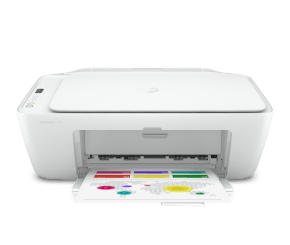
Before you dive into setting up your HP printer, it’s crucial to ensure that your system meets the necessary requirements. This preparation will save you from potential headaches and ensure a smooth installation process. Firstly, check that your computer or device has a compatible operating system. For most HP printers, this includes Windows 7 or later, macOS 10.12 or later, and the latest versions of iOS and Android for mobile devices. Additionally, ensure that your device has sufficient storage space for downloading drivers and software, typically requiring at least 500 MB of free space.
Next, verify your internet connection. A stable and reliable Wi-Fi network is essential, especially if you plan to use wireless printing features. High-speed internet is preferable to ensure quick downloads of necessary drivers and software updates. If you’re using a wired connection, make sure your Ethernet cable is in good condition and properly connected to both your router and device. A weak or unstable internet connection can lead to incomplete downloads and installation errors, so this step is vital.
Lastly, gather all necessary equipment and information. This includes your HP printer, power cords, and any included USB cables if you plan to use a wired setup initially. Also, have your Wi-Fi network name and password handy, as you’ll need this information to connect your printer to your network. Ensuring you have all these components ready will streamline the setup process and help you avoid unnecessary delays. By confirming these system requirements, you pave the way for a seamless installation experience.
Accessing 123.hp.com/setup 2700
Once you’ve confirmed that your system meets the necessary requirements, the next step is accessing the official HP setup website, 123.hp.com/setup 2700. This site is a one-stop resource for all things related to the installation and configuration of your HP printer. Open your preferred web browser and type in the URL. This site is designed to be user-friendly, guiding you through the setup process with clear instructions and helpful visuals.
Upon arriving at the site, you’ll be prompted to enter your printer model. In this case, type in ‘HP 2700’ and click on the search icon. The site will direct you to a dedicated page for your specific printer model. This page contains all the resources you need, including links to download the necessary drivers, user manuals, and troubleshooting guides. It’s essential to ensure that you’re on the correct page for your printer model to avoid downloading incorrect software, which could lead to installation issues.
The 123.hp.com/setup 2700 site also provides valuable support options. If you encounter any difficulties during the setup, you can access live chat support or browse through the community forums for solutions. These resources are incredibly beneficial, offering real-time assistance and advice from other HP printer users. By utilizing these tools, you can resolve any issues quickly and continue with your installation process without unnecessary delays.
Downloading and Installing Printer Drivers
Once you’re on the correct page for your printer model at 123.hp.com/setup 2700, the next crucial step is downloading and installing the printer drivers. Printer drivers are essential software that allows your computer to communicate effectively with your printer. Without them, your printer won’t function correctly. Look for a prominent download button labeled ‘Download Drivers’ or ‘Install.’ Clicking this button will initiate the download of the necessary driver package for your HP 2700 printer.
After the download is complete, locate the downloaded file on your computer. This is typically found in your ‘Downloads’ folder unless you’ve specified a different location. Double-click the file to begin the installation process. A setup wizard will guide you through the installation. Follow the on-screen instructions carefully, agreeing to the terms and conditions and selecting the default installation settings unless you have specific preferences. The process may take a few minutes, depending on your system’s speed and performance.
Once the installation is complete, you may be prompted to restart your computer to finalize the setup. It’s important to comply with this prompt to ensure that all changes take effect. After restarting, your computer should recognize the HP 2700 printer, and you can proceed to the next steps, which involve connecting your printer to your Wi-Fi network and configuring its settings. Successfully installing the drivers is a significant milestone in the setup process, bringing you one step closer to using your new printer.
Connecting Your HP Printer to Wi-Fi
Now that the printer drivers are installed, the next step involves connecting your HP 2700 printer to your Wi-Fi network. This is essential if you plan to take advantage of wireless printing capabilities, which offer convenience and flexibility. Begin by turning on your printer and ensuring it is within range of your Wi-Fi router. On the printer’s control panel, navigate to the ‘Wireless’ or ‘Network’ settings menu. Here, you’ll find an option to ‘Set Up Wireless Network’ or ‘Wireless Setup Wizard.’
Select this option, and your printer will begin searching for available Wi-Fi networks. Once your network appears in the list, select it and enter your Wi-Fi password when prompted. This step may take a few moments as the printer establishes a connection with your network. If the connection is successful, a confirmation message will appear on the printer’s display. It’s important to ensure that your Wi-Fi signal is strong during this process to avoid connection issues.
In some cases, you may need to use the HP Smart app or a temporary USB connection to complete the Wi-Fi setup. The HP Smart app is available for download on both iOS and Android devices. If using the app, follow the on-screen instructions to add your printer and connect it to your Wi-Fi network. This method is particularly useful if your printer’s control panel is limited or if you’re experiencing difficulties with the manual setup. Successfully connecting your printer to Wi-Fi will enable you to print wirelessly from any device on your network, adding significant convenience to your printing experience.
Configuring Printer Settings via the HP Smart App
With your HP 2700 printer connected to your Wi-Fi network, the next step is configuring its settings to optimize performance and functionality. The HP Smart app is an invaluable tool for this purpose, offering a user-friendly interface and a range of customization options. Start by downloading the HP Smart app from the App Store or Google Play Store and installing it on your mobile device. Open the app and follow the on-screen prompts to add your printer, ensuring it is connected to the same Wi-Fi network as your device.
Once your printer is added, you can access various settings and features through the app. One of the first settings to configure is the paper type and size. This ensures that your printer handles different types of paper correctly, preventing issues like paper jams or incorrect print layouts. Navigate to the ‘Printer Settings’ section in the app and select ‘Paper Handling.’ Here, you can specify the type of paper you’re using, such as plain, photo, or glossy, as well as the size (e.g., A4, Letter, etc.).
Additionally, the HP Smart app allows you to set up preferences for print quality and color settings. If you frequently print documents where high-quality images are essential, you can adjust the print quality to ‘Best’ or ‘High.’ For everyday printing, the ‘Normal’ or ‘Draft’ settings may suffice, saving ink and printing time. You can also choose between color or black-and-white printing, depending on your needs. By customizing these settings, you can ensure that your HP 2700 printer operates according to your specific requirements, enhancing your overall printing experience.
Troubleshooting Common Installation Issues
Despite your best efforts, you may encounter some common issues during the installation process. Understanding how to troubleshoot these problems can save you time and frustration. One frequent issue is the printer not being detected by your computer or network. This can often be resolved by checking your connections. Ensure that your printer is powered on and connected to the same Wi-Fi network as your computer. Restarting your router, printer, and computer can also help establish a fresh connection.
Another common problem is driver installation errors. If you receive an error message during the driver installation, it may be due to outdated operating system software or insufficient disk space. Make sure your system is up to date and has enough free space to accommodate the printer drivers. If the problem persists, try downloading the driver package again from 123.hp.com/setup 2700, as the initial download may have been corrupted.
Paper jams and print quality issues can also arise during or after installation. If you encounter a paper jam, carefully remove any stuck paper from the input and output trays, following the guidelines in your printer’s manual. For print quality problems, such as streaks or faded prints, check the ink or toner levels and replace cartridges if necessary. Running a printhead cleaning cycle from the printer’s maintenance menu can also help. By addressing these common issues promptly, you can ensure that your HP 2700 printer functions smoothly and efficiently.
Tips for Maintaining Your HP Printer
Proper maintenance of your HP 2700 printer is essential for ensuring its longevity and optimal performance. Regular upkeep can prevent common problems like paper jams, ink smudges, and print quality issues. One of the simplest yet most effective maintenance tasks is keeping your printer clean. Dust and debris can accumulate in and around the printer, affecting its functionality. Use a soft, lint-free cloth to wipe down the exterior and a small, clean brush to remove dust from the paper trays and feeder.
Another key maintenance tip is regularly checking and replacing the ink or toner cartridges. Low ink levels can lead to poor print quality, so it’s important to monitor the status of your cartridges. Most HP printers, including the 2700 model, provide alerts when ink levels are low. Keep a spare set of cartridges on hand to avoid interruptions. When replacing cartridges, handle them carefully to avoid spilling ink and ensure they are securely installed to prevent leaks.
Performing routine software updates is also crucial for maintaining your printer. HP frequently releases updates to improve performance, add new features, and address any bugs or security vulnerabilities. The HP Smart app and your printer’s control panel will notify you of available updates. Installing these updates promptly ensures that your printer operates with the latest enhancements and protections. By following these maintenance tips, you can prolong the lifespan of your HP 2700 printer and enjoy consistent, high-quality prints.
Frequently Asked Questions (FAQs) about HP Printer Setup
Setting up a new printer can raise several questions, especially if you encounter unexpected issues. Here are some frequently asked questions and their answers to help you navigate the setup process more smoothly. One common question is, “What should I do if my printer is not connecting to Wi-Fi?” Ensure that your printer is within range of your router and that the Wi-Fi network is functioning properly. Double-check the network name and password, and consider restarting your router and printer.
Another frequently asked question is, “How can I resolve poor print quality?” Poor print quality can stem from several factors, including low ink levels, clogged printheads, or incorrect paper settings. Check the ink or toner levels and replace cartridges if necessary. Run a printhead cleaning cycle, which can be initiated from the printer’s maintenance menu or the HP Smart app. Ensure that the paper type and size settings match the paper you are using to avoid misalignment and smudges.
Users often ask, “Why is my printer not detected by my computer?” This issue can occur if the printer drivers are not installed correctly or if there is a connectivity problem. Make sure you have downloaded and installed the correct drivers from 123.hp.com/setup 2700. Verify that your printer and computer are connected to the same Wi-Fi network. If you are using a USB connection, ensure that the cable is securely connected. These FAQs address some of the most common concerns, providing solutions to help you complete your printer setup successfully.
Conclusion and Final Thoughts on HP Printer Installation
Setting up your HP 2700 printer doesn’t have to be a daunting task. By following this step-by-step guide and ensuring that your system meets the necessary requirements, you can streamline the installation process and start enjoying your new printer in no time. Accessing 123.hp.com/setup 2700 provides you with all the resources you need, from downloading drivers to troubleshooting common issues. Connecting your printer to Wi-Fi and configuring settings via the HP Smart app further enhances your printing experience.
Regular maintenance and staying informed about common setup issues can prevent many problems and ensure that your printer operates smoothly. By keeping your printer clean, monitoring ink levels, and performing software updates, you can extend the lifespan of your device and maintain high-quality prints. The frequently asked questions section addresses common concerns, offering practical solutions to help you overcome any obstacles during the setup process.
In conclusion, the key to a successful HP 2700 printer installation lies in thorough preparation and following clear, concise instructions. With this comprehensive guide, you have all the information you need to effortlessly set up and maintain your printer. Whether you’re a tech novice or an experienced user, these steps will help you unlock the full potential of your HP 2700 printer, ensuring a seamless and enjoyable printing experience. Start your setup today and elevate your printing capabilities with confidence!